TX-8270-Initial Setup with Auto Start-up Wizard
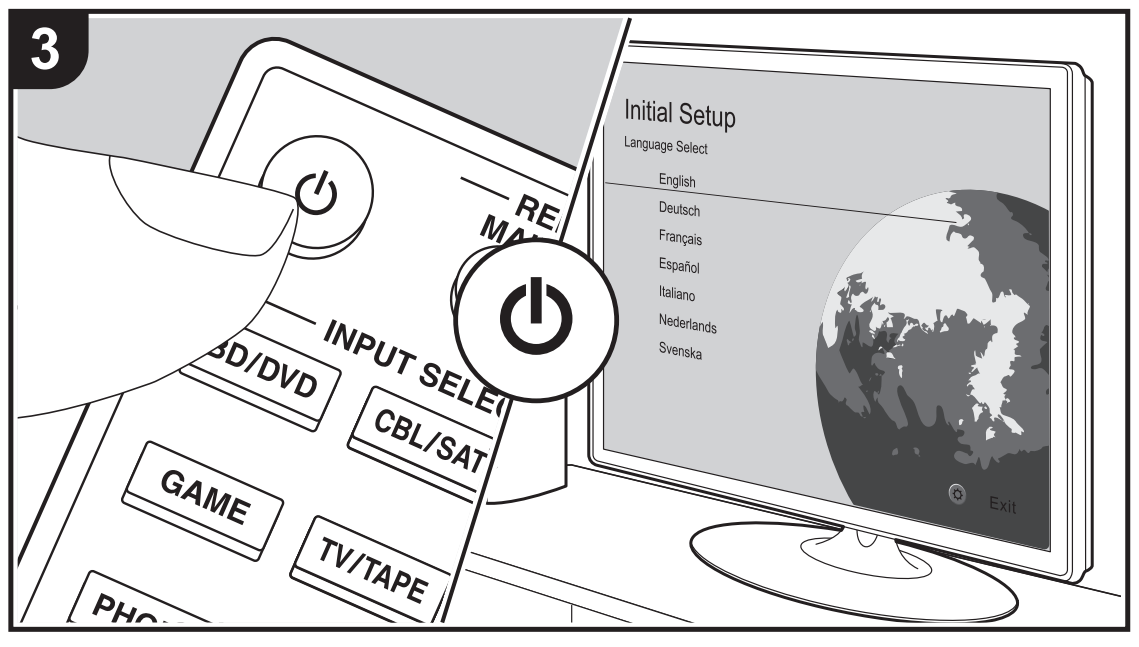
When you turn the unit on for the first time after purchasing it, Initial Setup is automatically shown on the TV to enable you to make settings required for startup using simple operations following onscreen guidance.
- Switch the input on the TV to that assigned to the unit
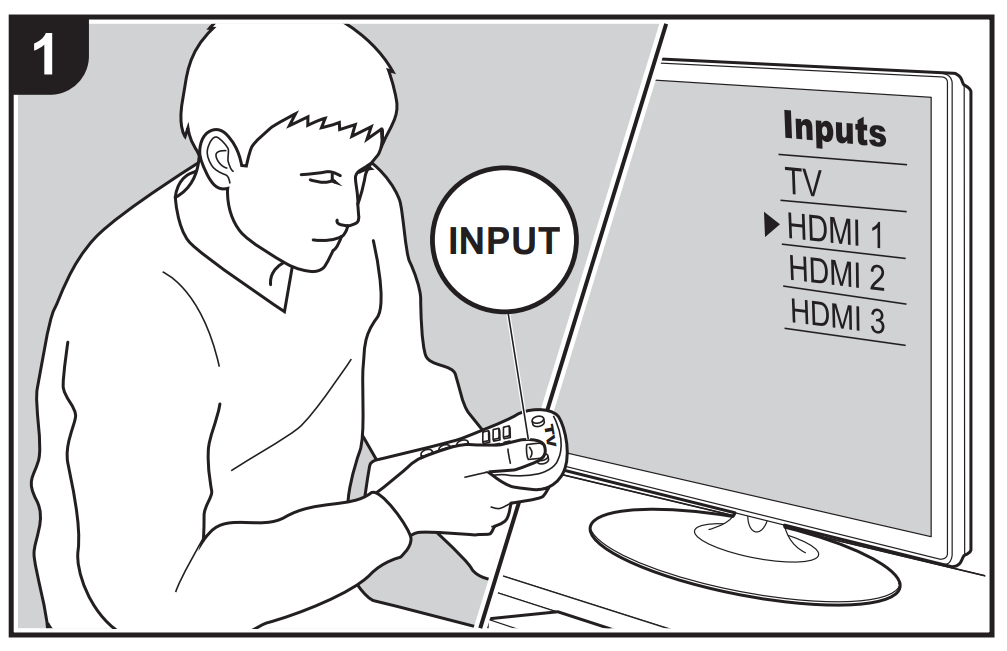
- Put batteries into the remote controller of this unit
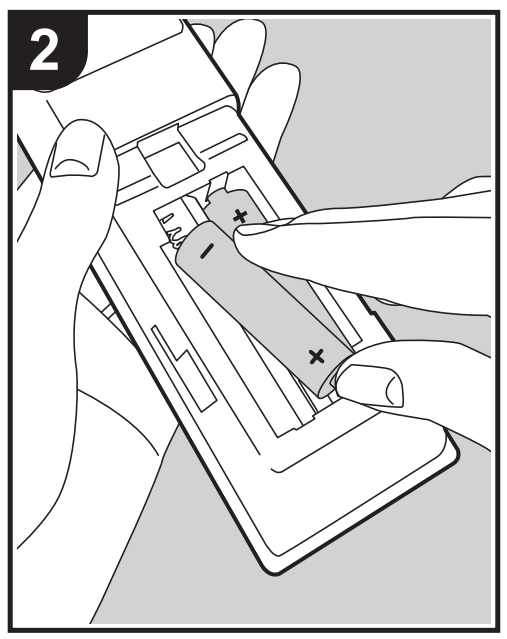
- Press Power on the remote controller to turn the unit on
- Select the item with the cursors of the remote controller and press ENTER (a) to confirm your selection. To return to the previous screen, press RETURN (b).
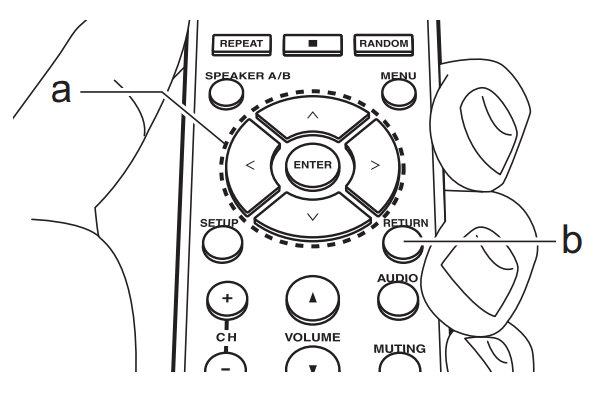
-
If you terminate the procedure on the way or want to change a setting made during Initial Setup, press SETUP on the remote controller, and select "7. Miscellaneous" - "Initial Setup" and press ENTER. To select the language displayed again, change "OSD Language".
-
Source Connection
If you terminate the procedure on the way or want to change a setting made during Initial Setup, press SETUP on the remote controller, and select "7. Miscellaneous" - "Initial Setup" and press ENTER. To select the language displayed again, change "OSD Language". - Network Connection
Set up Wi-Fi connection with an access point such as a wireless LAN router. There are the following two methods of connecting by Wi-Fi:
"Scan Networks": Search for an access point from this unit. Find out the SSID of the access point beforehand.
"Use iOS Device (iOS7 or later)": Connect by sharing the iOS device's Wi-Fi settings with this unit.
If you select "Scan Networks", there are a further two choices of connection method. Check the following.
"Enter Password": Enter the password (or key) of the access point to connect.
"Push Button": If the access point has an automatic connection button, you can connect without entering a password.
If the SSID of the access point is not displayed, then in the screen listing the SSIDs, select "Other..." with the A cursor on the remote controller and press ENTER, then follow the onscreen instructions.
Keyboard input
To switch between upper and lower case, select "A/a" on the screen and press ENTER. To select whether to mask the password with "¢" or display it in plain text, press MENU on the remote control. Pressing CLR will delete all the input characters.
A confirmation screen asking you to agree to the privacy policy is displayed during network setting. Select "Accept" and press ENTER to indicate agreement. - Multi Zone Setup
Make these settings to enjoy audio in a room other than the main room (ZONE 2). - Audio Return Channel
If you have connected a TV that supports ARC, select "Yes". This unit's ARC setting turns on and you can listen to the TV's audio through this unit.
Comments
0 comments
Article is closed for comments.