TX-8270-Internet Radio
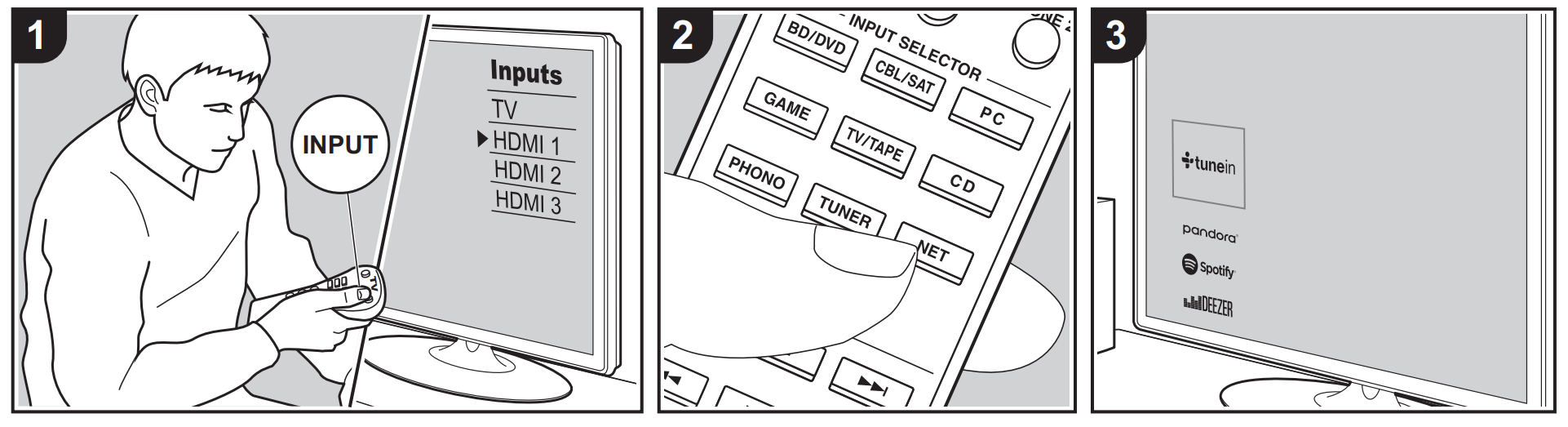
You can use internet radio services such as TuneIn Radio, Pandora, Deezer, and TIDAL by connecting this unit to a network that has an internet connection.
- The network needs to be connected to the internet in order to play internet radio
services. - Depending on the internet radio service, the user may need to register from their computer first. Refer to the websites for each of the services for details about them.
- Functionality may be introduced by firmware updates and service providers may cease services, meaning that some network services and content may become unavailable in the future.
Playing Back
Perform the following procedure when the unit is on.
- Switch the input on the TV to that assigned to the unit.
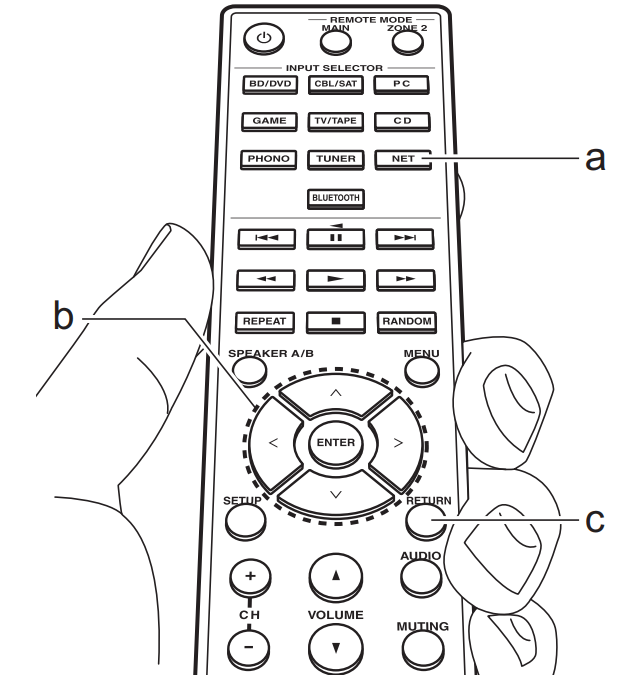
- Press NET (a) on the remote controller to display a list of Network Functions on
the TV. - Select the internet radio service you want with the cursors of the remote controller and press ENTER (b) to confirm your selection.
- Follow the on-screen instructions, using the cursors to select radio stations and programs, then press ENTER to play (b).
- To return to the previous screen, press RETURN (c).
Registering stations in the BGM Buttons
You can register up to 4 of your favorite internet radio stations to the BGM buttons on the main unit. By registering to BGM buttons, you can start reception with one press of a button. After tuning into the internet radio station you want to register, perform the following procedure.
- Press and hold one of the BGM buttons 1 to 4 on the main unit. "Preset Written" is displayed on the
display and the internet radio station being received is registered. If there is already a internet radio station registered, it is replaced.
- Press the BGM buttons 1 to 4 to listen to the internet radio stations you have preset. If you press these buttons when the unit is in standby mode, it comes on and starts receiving the station.
- You can register only one Spotify station (multiple stations cannot be registered). If there is already a station registered, it is replaced with the number you register last.
Internet Radio Service Menus
You can register certain stations as your favorites or delete stations you have registered from your favorites. The menu displayed depends on the service currently selected.
Menu icons are displayed at the bottom right of the screen while playing a station. The menu is displayed on the screen if you press the MENU button on the remote controller at this time.
Regarding the TuneIn Radio Account
Creating an account on the TuneIn Radio website (tunein.com) and logging in from the unit allows you to automatically add your favorite radio stations and programs to your "My Presets" on the unit as you follow them on the website. "My Presets" are displayed in the level under TuneIn Radio.
To display a radio station registered in "My Presets", you must log into TuneIn Radio from the unit. To log in, select "Login" - "I have a TuneIn account" in the "TuneIn Radio" top list on the unit, and then enter
your user name and password.
- If you select "Login" on this unit, you can use the displayed registration code to associate this device on the My Page section of the TuneIn Radio website so that you can login to "Login" - "Login with a registration code" without having to enter your user name and password.
Spotify
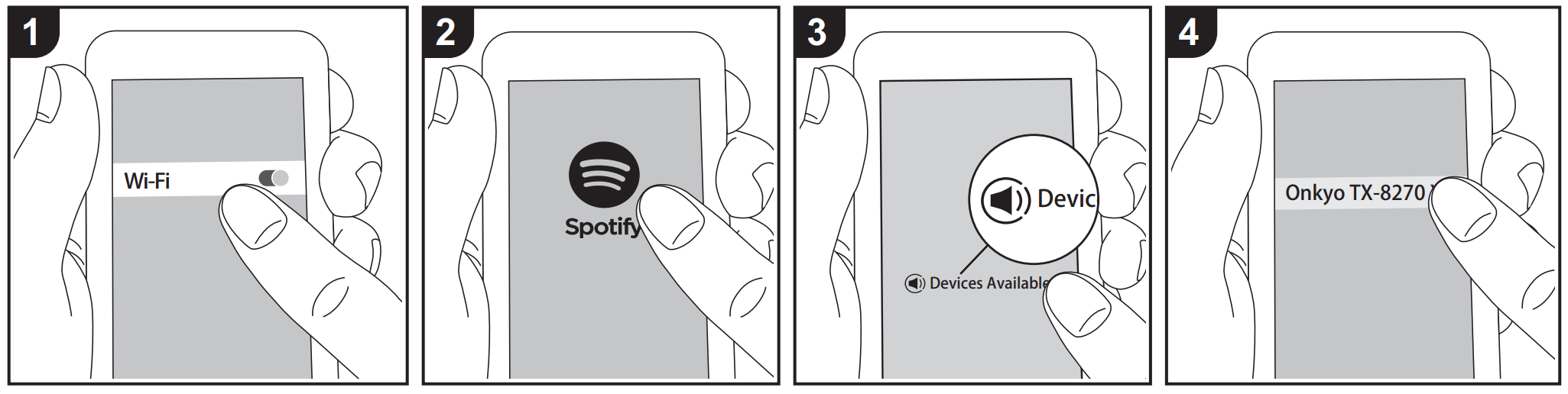
Spotify Connect play is possible by connecting this unit to the same network as a smart phone or tablet.
- To play Spotify Connect, you need to install the Spotify application on your smartphone or tablet. You also need to create a Spotify premium account.
– Refer to the following for Spotify settings: www.spotify.com/connect/
Playing Back
- Connect the smartphone to the access point that this unit is connected to
- Start the Spotify app
- Play the track in the Spotify app, then after switching to the screen for controlling play, tap "Devices Available" at the bottom of the screen
- Select this unit
- This unit turns on automatically and the input selector changes to NET and streaming of Spotify starts.
- If "5. Hardware" - "Power Management" - "Network Standby" is set to "Off" in the Setup menu, manually turn the unit on and then press NET on the remote controller.
Notes for Using Multi-Zone
- To enjoy Spotify in a separate room, manually select "NET" as the input of the separate room. After doing that, select this unit with the Spotify app.
- To enjoy Spotify in the main room after playing Spotify in a separate room, select "NET" as the input of the main room.
Comments
0 comments
Article is closed for comments.