TX-NR5100 - Setup Menu - Input/Output Assign
TV Out/OSD
Make settings for TV output and On-Screen Displays (OSD) that appear on the TV.
HDMI Out (Default Value: MAIN)
Select the HDMI jack to be connected with the TV.
- If devices with different resolutions are connected to HDMI OUT MAIN jack and SUB jack, images are output with the lower resolution.

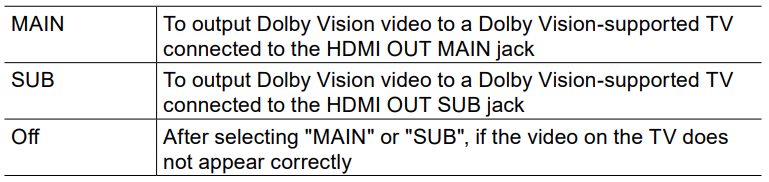
Dolby Vision (Default Value: MAIN)
To output Dolby Vision video from the player to a TV that supports Dolby Vision, select either the HDMI OUT MAIN jack or HDMI OUT SUB jack to which the Dolby Vision-supported TV is connected. This setting is only necessary if you have set "HDMI Out" to "MAIN+SUB" and you have connected a TV to both the
MAIN and SUB jacks.
Upscaling (Default Value: Off)
When a TV supporting 4K is used, video signals input with 1080p can be automatically output with 4K.
- If the TV does not support the 4K resolution with the same frequency as the frequency of HDMI input video signals, upscaling to 4K is not correctly performed. Check the frequency of 4K resolution supported by the TV, and change the resolution of the video signals input from the AV component.

Super Resolution (Default Value: 2)
When "Upscaling" is set to "Auto", select the correction level of the input video signals from "Off" and "1" (weak) to "3" (strong).
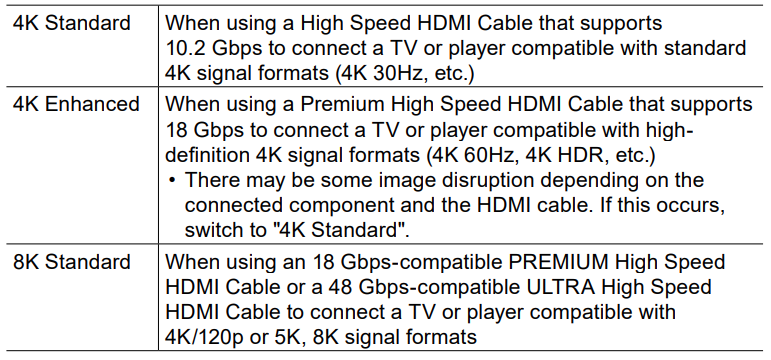
HDMI 4K/8K Signal Format
Set the 4K/8K signal format input and output by this unit. Set to suit the TV or player connected.
BD/DVD (Default Value: 4K Enhanced)
GAME (Default Value: 4K Enhanced)
CBL/SAT (Default Value: 4K Enhanced)
STRM BOX (Default Value: 4K Enhanced)
PC (Default Value: 4K Enhanced)
CD (Default Value: 4K Enhanced)
TV (Default Value: 4K Enhanced)
OSD Language (Default Value: English)
Select the on-screen display language from the following. English, German, French, Spanish, Italian, Dutch, Swedish
Impose OSD (Default Value: On)
Set whether or not to display information such as volume adjustment or switching of input on the TV screen.

Mini Player OSD (Default Value: Always On)
You can display on the TV the images from another input selected last while playing the audio from NET or BLUETOOTH input. After switching the input to NET or BLUETOOTH, play the images and audio. And then when you press MODE on the remote controller, the image is displayed in full-screen mode, and
the audio information (Mini Player) for NET or BLUETOOTH is displayed in the corner of the screen. You can set whether to always display this Mini Player on the screen.
- Each time the MODE button is pressed, the image display/non-display can be switched.
- This setting cannot be selected if "Impose OSD" is set to "Off".

Screen Saver (Default Value: 3 minutes)
Set the time to start the screen saver.
Select a value from "3 minutes", "5 minutes", "10 minutes" and "Off".
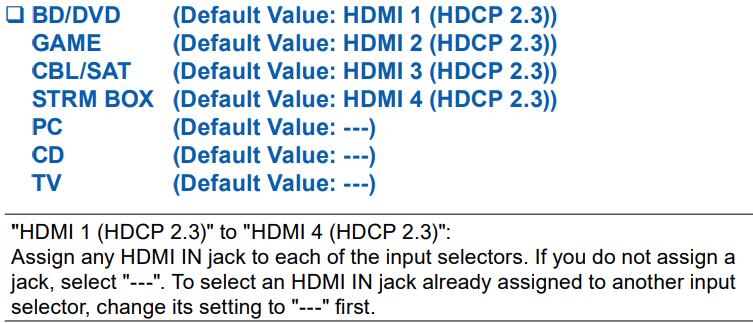
HDMI Input
You can change input assignment between the input selectors and HDMI IN jacks.
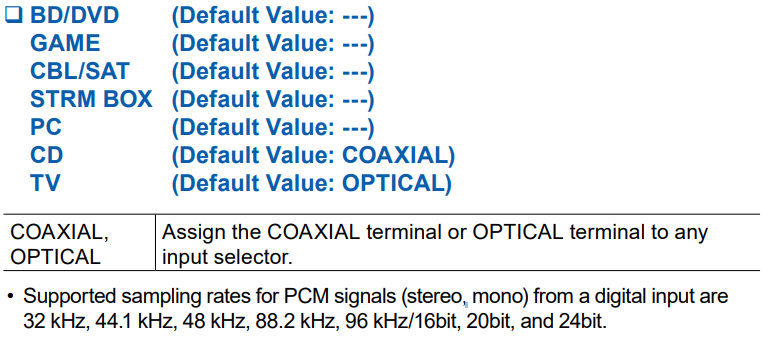
Digital Audio Input
Change input assignment between the input selectors and DIGITAL IN COAXIAL/OPTICAL jacks. If you do not assign a jack, select "---".
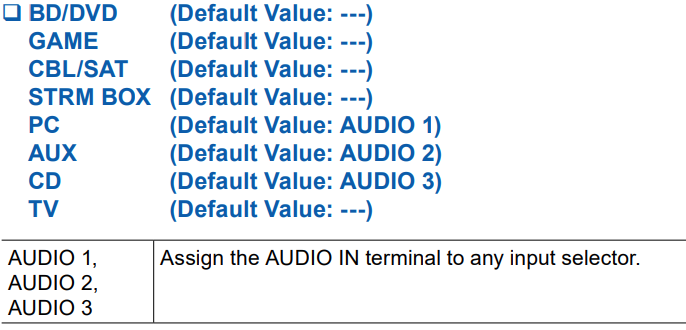
Analog Audio Input
Change input assignment between the input selectors and AUDIO IN jacks. If you do not assign a jack, select "---".
Comments
0 comments
Please sign in to leave a comment.