TX-NR5100 - Setup Menu - Bluetooth
Change the settings for the BLUETOOTH function.
- Wait for a while if "Bluetooth" cannot be selected. It can be selected when the BLUETOOTH function is activated.
Bluetooth Receiver
Default Value: On
Select whether or not to use the function that receives audio from BLUETOOTH wireless technology enabled devices.

Auto Input Change
Default Value: On
When a BLUETOOTH enabled device is played while it is connected to the unit, the input of the unit can be automatically switched to "BLUETOOTH".

Auto Reconnect
Default Value: On
This function automatically reconnects to the BLUETOOTH enabled device connected last when you change the input to "BLUETOOTH".
- This may not work with some BLUETOOTH enabled devices.

Pairing Information
Default Value: -
You can initialize the pairing information stored on this unit. If you are no longer able to connect with a device you have paired, try doing this.
Pressing ENTER when "Clear" is displayed initializes the pairing information stored on this unit.
- This function does not initialize the pairing information on the BLUETOOTH enabled device. When pairing the unit again with the device, be sure to clear the pairing information on the BLUETOOTH enabled device beforehand. For information on how to clear the pairing information, refer to the instruction manual of the BLUETOOTH enabled device.
Device
Default Value: -
Displays the name of the BLUETOOTH enabled device connected to the unit.
- The name is not displayed when "Status" is "Ready" and "Pairing".
Status
Default Value: -
Displays the status of the BLUETOOTH enabled device connected to the unit.

Bluetooth Transmitter
Default Value: Off
Select whether or not to use the function that transmits audio from this unit to BLUETOOTH wireless technology enabled devices.
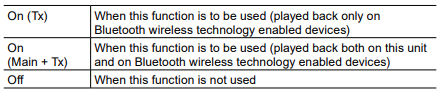
Search Devices
Default Value: -
Search for a BLUETOOTH wireless technology enabled device that is able to receive the audio from this unit. Select "Start" then press ENTER. A list of the names of BLUETOOTH wireless technology enabled devices that are able to receive is displayed. Select the device to be connected with the cursors ^v/ , then pairing begins when you press ENTER.
Output Level
Default Value: Variable
You can select whether to adjust the volume on this unit or to adjust it on the Bluetooth wireless technology enabled device.

aptX HD
Default Value: Off
It is possible to use aptX HD to connect a BLUETOOTH wireless technology enabled device and this unit.
- The codec of the receiving device must be compatible with aptX HD.

Low Latency Mode
Default Value: Off
If the audio from a device connected via BLUETOOTH is delayed compared to the video on the TV when watching a gaming screen, etc., you can reduce the audio delay.

Pairing Information
Default Value: -
You can initialize the pairing information stored on this unit. If you are no longer able to connect with a device you have paired, try doing this. Pressing ENTER when "Clear" is displayed initializes the pairing information stored on this unit.
- This function does not initialize the pairing information on the BLUETOOTH enabled device. When pairing the unit again with the device, be sure to clear the pairing information on the BLUETOOTH enabled device in advance. For information on how to clear the pairing information, refer to the BLUETOOTH enabled device's instruction manual.
Device
Default Value: -
Displays the name of the BLUETOOTH enabled device connected to the unit.
- The name is not displayed when "Status" is "Ready" and "Pairing".
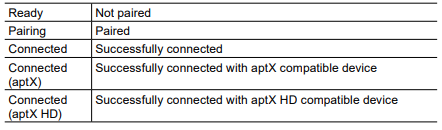
Status
Default Value: -
Displays the status of the BLUETOOTH enabled device connected to the unit.
Comments
0 comments
Please sign in to leave a comment.