TX-RZ1100 - AccuEQ Room Calibration
Please use the following instructions to initiate and complete the AccuEQ Room Calibration on the TX-RZ1100 AV Receiver.
Place the supplied speaker setup microphone in the listening position, measure the test tones emitted by the speakers, then the unit automatically sets the optimum volume level for each speaker, the crossover frequencies, and the distance from the listening position.
This also reduces the influence of standing waves to suit the listening environment, automatically adjusts the equalizers for the speakers, and enables correction of distortion caused by the acoustic environment of the room.
- Calibration takes between 3 to 12 minutes to be completed. The speakers emit the test tone at high
volume during measurement, so be careful of your surroundings. Keep the room as quiet as possible during measurement. - When using THX certified speakers, THX recommends setting the crossover frequency to "80Hz(THX)". It is also recommended to manually adjust the settings for each speaker to suit the specific characteristics of each room.
- If the power of this unit suddenly turns off, the wires in the speaker cables may have touch the rear panel or other wires and tripped the protection circuit. Twist the wires again properly and make sure they do not stick out of the speaker terminals when connecting.
1. Place the supplied speaker setup microphone in the listening position, and connect to the SETUP MIC jack on the main unit.
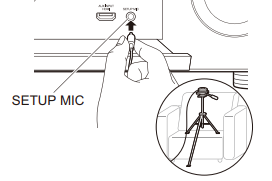
When putting the speaker setup microphone on a tripod, refer to the illustration when putting it in place.
- To cancel AccuEQ Room Calibration partway through, disconnect the speaker setup microphone.
2. Select the connected speaker configuration.
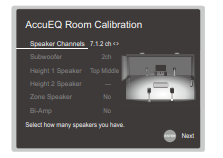
The image on the screen changes as you choose the number of channels in "Speaker Channels", so refer to it when performing the settings.
Also use this screen to select whether you have connected a subwoofer and to select the type of height
speaker, etc.
- If you have connected a subwoofer, check the power and volume of the subwoofer.
- Set the subwoofer volume to more than halfway
3. Test tones are emitted by the speakers, and firstly the unit detects the speakers connected and the noise in the environment.
4. After the results of the above measurements are displayed, select "Next", press ENTER on the remote controller, and the test tones are emitted again, and the unit automatically makes settings such as the optimum volume level and the crossover frequency.
5. Select whether to enable or disable the equalizer function that corrects for distortion caused by the acoustic environment of the room.
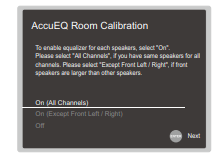
If this is to be enabled, then normally you should select "On (All Channels)", and to disable just the front
speakers you should select "On (Except Front Left / Right)".
6. Disconnect the speaker setup microphone. You cannot use any other menu options while it is connected.
Quick Menu
AccuEQ Room Calibration:
Enable or disable the equalizer function that corrects for distortion caused by the acoustic environment of the room.
If this is to be enabled, then normally you should select "On (All Ch)", and to disable just the front speakers you should select "On (ex. L/R)". The setting can be separately set to each input selector.
Equalizer:
Select "Preset 1" to "Preset 3" configured in "2. Speaker"
- "Equalizer Settings" in the Setup menu. The same sound field setting is applied all ranges when set to "Off".
EQ for Standing Wave :
Select whether to enable or disable the standing wave control calibrated in "2. Speaker" - "EQ for Standing Wave" in the Setup menu.
- It cannot be set if the listening mode is Pure Direct.
Re-EQ, Re-EQ(THX):
Adjust the soundtrack that was processed to enhance its high pitch range, in order to make it suitable for home theater.
In Re-EQ, the following listening modes can be used: Dolby Digital, Dolby Digital Plus, Dolby Surround, Dolby TrueHD, Multichannel, DTS, DTS-ES, DTS 96/24, DTSHD High Resolution Audio, DTS-HD Master Audio, DTS Neural:X, DTS Express, and DSD.
In Re-EQ(THX), the following listening modes can be used: THX Cinema, and THX Select2 Cinema.
- It cannot be set if the listening mode is Pure Audio or Direct.
Comments
0 comments
Please sign in to leave a comment.