TX-RZ1100 - Playback with USB Storage Device
You can play music files stored on a USB storage device.
Perform the following procedure when this unit is on.
1. Switch the input on the TV to the input connected to the unit.
2. Plug your USB storage device containing music files into the USB port of this unit’s rear panel.
3. Press NET to display the network service list screen.
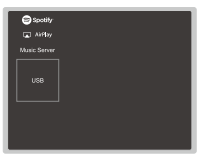
4. Select "USB" with the cursors, and then press ENTER.
- If the "USB" indicator blinks on the display, check whether the USB storage device is plugged in properly.
- Do not unplug the USB storage device while "Connecting..." is being displayed on the display. This may cause data corruption or malfunction.
5. Press ENTER on the next screen again. The list of folders and music files on the USB storage device is displayed. Select the folder with the cursors, and press ENTER to confirm your selection.
6. Select the music file with the cursors, and then press ENTER to start playback.
• To return to the previous screen, press [RETURN].
USB Storage Device Requirements
• This unit can use USB storage devices that comply with the USB mass storage device class standard.
• FAT16 or FAT32 file system format.
• If the USB storage device has been partitioned, each section will be treated as an independent device.
• Up to 20,000 tracks per folder can be displayed, and folders may be nested up to 16 levels deep.
• USB hubs and USB storage devices with hub functions are not supported. Do not connect these devices to the unit.
• USB storage devices with security function are not supported on this unit.
• If you connect a USB hard disk drive to the USB port of the unit, we recommend that you use its AC adapter to power it.
• Media inserted to the USB card reader may not be available in this function. Furthermore, depending on
the USB storage device, proper reading of the contents may not be possible.
• Our company accepts no responsibility whatsoever for the loss or damage to data stored on a USB storage device when that device is used with this unit. We recommend that you back up your important music files beforehand.
Operations with the remote controller:
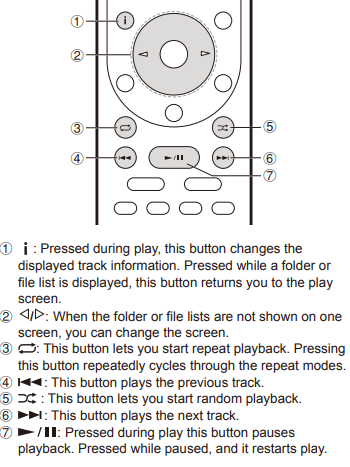
Icons Displayed during Playback:
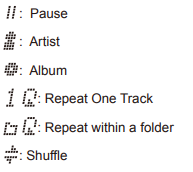
Icons are displayed on the display during music file playback.
The meaning of each icon is as follows:

Comments
0 comments
Please sign in to leave a comment.